
Introduction: Turn Copilot Into Your Everyday Email Wingmate
Table of Contents
- Introduction: Turn Copilot Into Your Everyday Email Wingmate
- 1. Daily and Weekly Copilot Routines for Inbox Management
- 2. Teaching Copilot Email Priority and Managing Semi‑Automated Triage
- 3. Copilot Triage, Summaries, and Reply Drafts: Core Workflows
- 4. Folder‑Based vs Search‑Based Organisation with Copilot
- 5. Mobile vs Desktop and Prompt Habits to Try This Week
- Conclusion and Next Steps

If your Outlook inbox feels like a never‑ending surf break, Microsoft Copilot can be the board that finally lets you ride the wave instead of wiping out. In this second part of our series, we focus on mastering Copilot for email in Outlook with a clear AU lens, aimed at everyday users who already have access and want practical change in how they work.
You will see how to get value from Copilot’s prioritisation, summaries, drafting, and triage actions without needing to be a power user or IT admin, drawing on what Microsoft’s own guidance on mastering your inbox with an AI assistant shows is possible in real-world use.
By the end, you will have a simple playbook you can use in your next workday—whether you are in a Sydney office, on a flight to Perth, or squeezing in emails between meetings in Melbourne’s CBD—and you will see where a dedicated, secure Australian AI assistant such as Lyfe AI can complement Copilot for everything beyond Outlook.
https://www.microsoft.com/en-au/microsoft-365/copilot
1. Daily and Weekly Copilot Routines for Inbox Management
Copilot starts to feel genuinely useful when you turn it into a repeatable routine rather than a novelty. Think of it as a daily “email circuit” you can run through in 15–25 minutes, morning and afternoon, with a slightly deeper review once a week—very similar to the streamlined flows described in several Microsoft Community Hub examples of Copilot‑powered email efficiency.
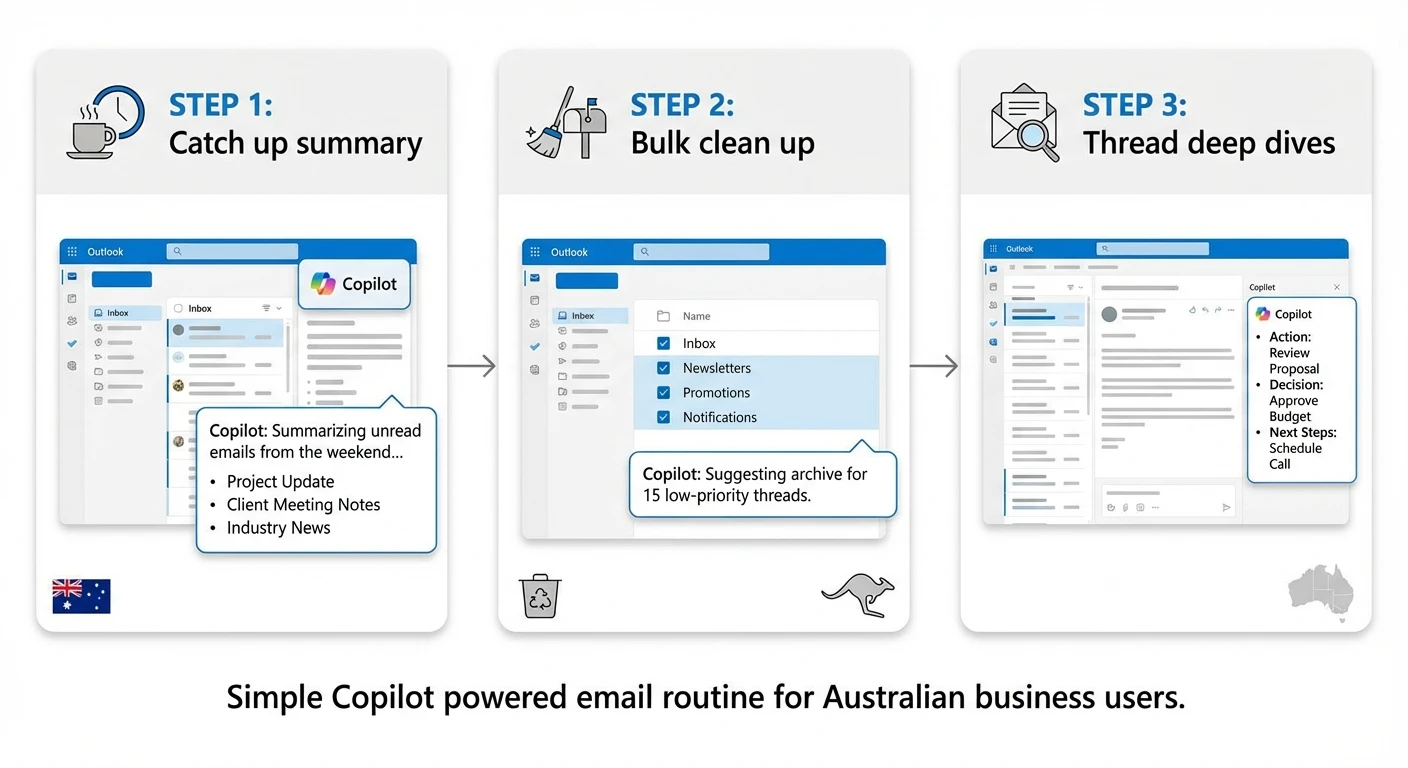
For mornings, a simple three‑step pattern works well (and pairs neatly with any broader AI workflow you might already be running through Lyfe AI’s automation services across your calendar, tasks, and documents):
- Catch‑up summary. Ask: “Copilot, summarise all high‑priority emails since yesterday 5pm and list what I owe to others.” This condenses unread messages and pulls out action items from content‑heavy threads.
- Bulk clean‑up. Follow with: “Show me lower‑priority newsletters and marketing emails from the last two days so I can clean them up.” You can then quickly archive or delete them in batches, treating Copilot as a spotlight rather than a robot doing everything for you.
- Thread deep‑dives. For messy projects, use: “Summarise the conversation about <Project Name> and list all questions directed at me.” You avoid rereading ten almost‑identical replies while still keeping full control of decisions and tone.
During the day, rely on Copilot as a rapid drafting assistant: “Draft a short, friendly reply confirming the delivery date and asking for any blockers, based on this thread.” You always review the draft, but Copilot does the initial heavy lifting, much like other AI email assistants evaluated in this in‑depth review of Copilot for Outlook and alternatives.
Weekly, book a 30‑minute “email review” block. Prompts like “Summarise important conversations from this week, highlight open commitments, and list unreplied emails from key stakeholders” help you update your task list and ensure nothing critical slips through the cracks before Friday afternoon—especially if you route key actions into custom AI automations that live outside your inbox.
2. Teaching Copilot Email Priority and Managing Semi‑Automated Triage
Copilot includes an automatic prioritisation feature in Outlook that can label incoming email as high, normal, or low priority and provide brief explanations for those labels. It It looks at signals like who sent the message, how often you interact with them, and whether the content appears urgent or time‑sensitive, mirroring how Copilot for Outlook’s “Prioritize My Inbox” feature surfaces important emails..
However, this is not magic mind‑reading. Copilot’s triage abilities are powerful but still semi‑autonomous: it can flag, pin, archive, create rules, and mark items as read or unread based on your prompts, but it still assists you rather than fully running your inbox on its own. You still guide it with prompts and with normal Outlook rules when you need precise behaviour, such as routing invoices or alerts into specific folders—or when you pair Outlook rules with professional AI workflow design that spans CRM, helpdesk, and other systems.
Over time, you can nudge Copilot’s sense of priority. Try prompts like:
- “Highlight unread messages from my manager and direct reports.”
- “Show me emails from key clients I usually reply to within one business day.”
- “List lower‑priority newsletters I can safely archive.”
Copilot includes a visual “priority rule builder” through the Prioritize My Inbox feature in Outlook, where your explicit rules tell it which senders and topics matter most to you, and those settings are then applied automatically going forward. For more accuracy, combine this with classic Outlook rules and folders. For example, send everything from a particular domain into a “VIP Clients” folder, then prompt Copilot: “Summarise today’s unread emails in my VIP Clients folder and list which ones need a response before close of business.”
This combination—automatic priority labels, your own rules, and prompt‑driven queries—lets Copilot act like a smart filter that you supervise, rather than a black box making risky decisions on your behalf, and it leaves room for firm‑wide AI governance built on Lyfe AI’s secure, Australian‑hosted solutions when you broaden beyond email.
3. Copilot Triage, Summaries, and Reply Drafts: Core Workflows
Once you have a handle on priority, the next step is to use Copilot for concrete triage and writing tasks. This is where you feel the biggest time savings in a normal Australian workday, especially when email is mixed with Teams chats, meetings, and phone calls—and where many lawyers, consultants, and ops leaders in reviews like this analysis of Copilot for email management report noticeable reductions in email fatigue.
Start with summarisation. For long threads, select the conversation and ask: “Summarise this thread in three bullet points and list decisions made plus any open actions.” Copilot condenses multiple messages into a short, readable view and identifies what still needs doing. For clusters of unread messages, try: “Summarise unread emails from this morning where I was mentioned directly, including any deadlines.”
For triage actions, Copilot can:
- Pin key messages you need to keep visible.
- Flag items for follow‑up on specific dates.
- Archive or delete obvious noise once you confirm.
- Mark mail as read or unread in bulk after review.
The trick is to stay in the loop. You might say: “Identify newsletters from the last week and suggest which to archive. Do not delete anything yet.” After you check the list, you can confirm: “Now archive all of those.” Copilot supports the action; you approve it.
Drafting and coaching is the final part of this workflow. You can ask Copilot to create full replies based on the thread, then refine for tone: “Draft a clear, polite response confirming we can meet the requested deadline. Keep it concise.” Or paste your rough email and say: “Improve clarity and make the tone more confident but still friendly.” Copilot will rewrite while keeping the key message and context from Outlook.
https://learn.microsoft.com/en-au/microsoft-365/copilot/overview
4. Folder‑Based vs Search‑Based Organisation with Copilot
Copilot changes how useful heavy folder structures are. If you have spent years building dozens of nested folders, you might not need all that micromanagement anymore—but you also do not need to throw it away overnight. Instead, think in two modes: folder‑based for predictable routing, search‑based for flexible retrieval, and remember that broader document and knowledge retrieval can be handled by a dedicated Australian AI assistant that sits over SharePoint, OneDrive, and other systems.
For a folder‑heavy setup, Copilot can help move items for you. Prompts such as “Move all newsletters and marketing emails from the last month to the ‘Newsletters’ folder” or “Move emails from @clientA.com into the ‘ClientA – 2026’ folder” allow you to clean historic clutter quickly. It is still you choosing the logic; Copilot is your efficient assistant moving things around.
A search‑first pattern tends to work better in the long run, especially once you trust Copilot’s summarisation and search capabilities. Instead of creating a folder for every project, you can rely on search folders, categories, and prompts like:
- “Show me a summary of all emails in the last week about Project Phoenix, sorted by sender and urgency.”
- “List all unread emails from external senders containing the word ‘contract’ received in the last 3 days.”
This approach keeps your core inbox simpler and reduces time spent filing. Many Australian professionals find it aligns better with flexible work patterns across time zones and devices—you can pull what you need on demand rather than hoping you filed it correctly six months ago.
A hybrid approach is often the sweet spot: a small set of high‑value folders (for critical clients or legal matters) plus search‑based, Copilot‑powered retrieval for everything else. Review your structure once a quarter and prune folders that no longer earn their keep, using tools like your site’s own content sitemap or knowledge index as a model for what “just enough structure” looks like.
5. Mobile vs Desktop and Prompt Habits to Try This Week

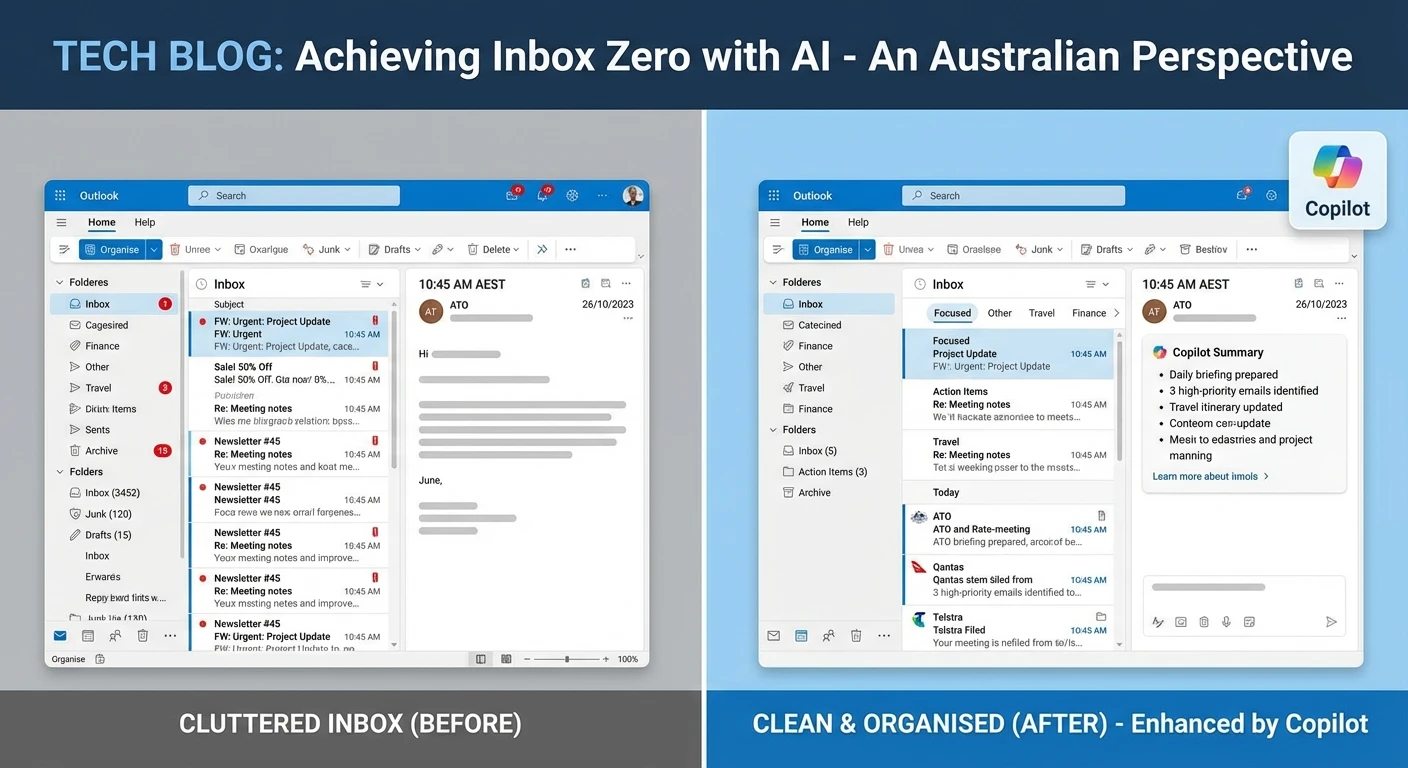
Outlook on Android and iOS includes Copilot, offering mobile-friendly tools for drafting, rewriting, and summarizing emails, though it doesn’t yet match the full, research-heavy and multitasking experience you get on desktop. Screen space is limited, network connections on the train between Parramatta and the CBD can be patchy, and complex multi‑email workflows are harder to manage with your thumbs—something many hands‑on reviews of Copilot as an Outlook AI assistant call out as a key trade‑off.
The practical way to think about it is this: mobile for quick moves, desktop or web for heavy lifting. On mobile, Copilot is ideal for:
- Summarising a long thread before you walk into a meeting.
- Drafting a short, polite reply while you wait for a coffee.
- Doing light triage, such as archiving obvious spam or flagging a couple of important messages to handle later.
Prompts like “Summarise this email in two bullets” or “Draft a brief acknowledgement saying I’ll respond in more detail this afternoon” work very well on a phone. You save time, yet you keep proper responses for when you are back at your desk with a keyboard.
On desktop or web, use Copilot for bigger jobs: processing dozens of unread emails, cleaning older newsletters, or orchestrating follow‑up flags based on commitments. The interface gives you the side panel, full folder tree, and the ability to open calendar and To Do alongside Outlook, making it easier to connect everything—or even dock a browser tab with your Lyfe AI assistant for non‑email questions at the same time.
Daily prompts
- Morning: “Summarise high‑priority emails since yesterday 5pm and list what I owe others.”
- Midday: “Show me emails I should respond to before lunch today, focusing on my manager, direct reports, and key clients.”
- Afternoon: “Identify new emails where I promised a follow‑up and flag them for today with a one‑line summary of the action.”
Weekly prompts
- “Summarise important conversations from this week and highlight open commitments or decisions I still owe.”
- “List unreplied emails from senior stakeholders from the last 7 days, sorted by urgency.”
- “Show newsletters and marketing emails from the past month and help me archive the ones I no longer need.”
Habit tweaks
- Do not write from scratch if you can help it—ask Copilot for a first draft, then edit.
- Stop building new folders unless you can explain exactly why you need them; lean on search and Copilot queries instead.
- Use mobile Copilot for summaries and quick replies only; reserve deep triage for desktop time blocks.
If you pick even two or three of these patterns and use them consistently for a fortnight, you will start to feel the load of email shift off your shoulders and into Copilot’s capable hands—while you stay firmly in control, especially if your wider digital workspace is stitched together with well‑chosen OpenAI models and clear usage rules such as those outlined in Lyfe AI’s terms and conditions, or even carefully chosen GPT‑5.2 variants and other foundation models that Lyfe AI can help route intelligently.
https://learn.microsoft.com/en-au/microsoft-365/copilot/overview
Conclusion and Next Steps
Copilot in Outlook is at its best when you treat it as a daily partner, not a one‑off experiment. With clear routines, simple prompt patterns, and a sensible mix of mobile and desktop use, you can turn a noisy inbox into a manageable workflow that fits the rhythm of work in Australia—then gradually plug those workflows into a broader AI fabric powered by Lyfe AI across the rest of your tools.
In Part 3 of this series, we will shift gears and look at how technical teams roll out Copilot for email safely and at scale, while this article remains your personal handbook. If you want help designing Copilot‑powered workflows tailored to your role and tools, reach out to the team at LYFE AI and explore how we can accelerate your Microsoft 365 productivity journey together through implementation services and professional advisory support.
Frequently Asked Questions
What is Microsoft Copilot for Outlook and how can it help with email management?
Microsoft Copilot for Outlook is an AI assistant built into Outlook that helps you summarise long threads, prioritise messages, and draft replies faster. For busy Australian professionals, it can turn inbox cleanup into a short routine by highlighting what needs attention first and generating clear, actionable responses based on your context.
How do I use Copilot in Outlook to quickly triage my inbox each morning?
Start by asking Copilot to summarise your unread emails and highlight anything urgent, time‑sensitive, or from key stakeholders. Then use its suggested actions—such as draft replies, follow‑up flags, or quick summaries—to clear or schedule responses, turning a messy inbox into a short checklist you can action in 15–25 minutes.
What are some good Copilot prompts for writing professional emails in Australia?
You can use prompts like “Draft a polite follow‑up email to a client in Sydney about the proposal we sent last week, keep it concise and professional” or “Write an internal update for the Melbourne team summarising this email thread in 3 bullet points.” Adding details like tone (formal, friendly, neutral) and audience (client, manager, team) helps Copilot match common Australian business communication styles.
How can I use Copilot for Outlook differently on desktop vs mobile?
On desktop, Copilot works best for deeper tasks like reviewing long threads, drafting considered replies, and running your full daily or weekly inbox routine. On mobile, it’s more useful for quick actions on the go—asking for a short summary of a thread, generating a brief reply before a meeting, or capturing follow‑up tasks while travelling between offices or client sites.
Does Copilot in Outlook work with Australian time zones, dates and local language?
Copilot respects the time zone and regional settings configured in your Microsoft 365 account and Outlook profile, so meeting times and date formats align with AU conventions. You can also tell Copilot to use Australian spelling and tone by including instructions like “use Australian English and an Australian business tone” in your prompts.
What’s the difference between using Microsoft Copilot and Lyfe AI for my email and other work tasks?
Microsoft Copilot is tightly integrated into Outlook and Microsoft 365, making it ideal for email triage, summaries, and drafting within that ecosystem. Lyfe AI is a dedicated, secure Australian AI assistant that can complement Copilot by handling broader workflows across tools, local compliance considerations, and organisation‑wide use cases that sit beyond just Outlook.
Is Copilot in Outlook secure enough for Australian businesses and government‑style work?
Copilot in Outlook follows the same security, compliance, and data‑handling standards as Microsoft 365, including access controls and permissions already configured by your organisation. Many Australian organisations still pair it with a local AI solution like Lyfe AI when they need additional data residency assurance, tighter control over prompts and outputs, or custom governance aligned to Australian regulations.
How can I build a daily or weekly Copilot routine to stay on top of emails?
Create a simple schedule: a 15–25 minute Copilot‑assisted inbox review in the morning and afternoon, plus one deeper weekly session to clear backlogs and set follow‑ups. In each block, ask Copilot to surface priorities, summarise long threads, and propose replies or actions so you consistently move important conversations forward without living in your inbox.
Can Copilot summarise long email threads and action items for my team?
Yes, you can ask Copilot to “Summarise this email thread and list key decisions and action items with owners and due dates.” It will produce a concise overview you can paste into a team update, meeting notes, or a Lyfe AI workspace to track tasks across projects.
How do I get the best results from Copilot email prompts without being an AI expert?
Focus on giving Copilot three things: context (who and what), intent (what you’re trying to achieve), and constraints (tone, length, deadline, or local AU nuances). Simple instructions like “keep it under 150 words, use Australian English, and sound friendly but professional” dramatically improve the quality and usability of the draft it produces.