
Introduction: Why IT Admins Need a Different Copilot Playbook
Table of Contents
- Introduction: Why IT Admins Need a Different Copilot Playbook
- 1. Tenant and Licensing Prerequisites for Copilot in Outlook
- 2. Step-by-Step: Enabling and Configuring Copilot for Email
- 3. Advanced Scenarios, Limits, and Safe Use Across AU Teams
- Practical Implementation Checklist for AU IT Teams
- Conclusion: Turn Copilot into a Managed Email Capability

Copilot for email in Outlook promises less manual triage and faster responses, but for Australian IT admins, the real challenge is different: how to enable and control it safely at scale. Copilot is not a magic “auto-pilot” for the inbox; it is an AI layer that sits on top of licensing, clients, rules, retention, and your existing governance, much like how a dedicated Australian AI assistant wraps around (and respects) existing processes rather than replacing them outright.
This guide focuses on the plumbing and guardrails. You will see the tenant and licensing prerequisites, the setup sequence in Outlook, how to design rules and retention around Copilot, and how to deal with misclassification, shared mailboxes, and multilingual teams across Australia and regional offices. By the end, you will have a practical blueprint you can apply to your own Microsoft 365 environment—without treating Copilot as a black box, and with clear parallels to how professional AI automation services are rolled out in a governed, staged fashion.
1. Tenant and Licensing Prerequisites for Copilot in Outlook
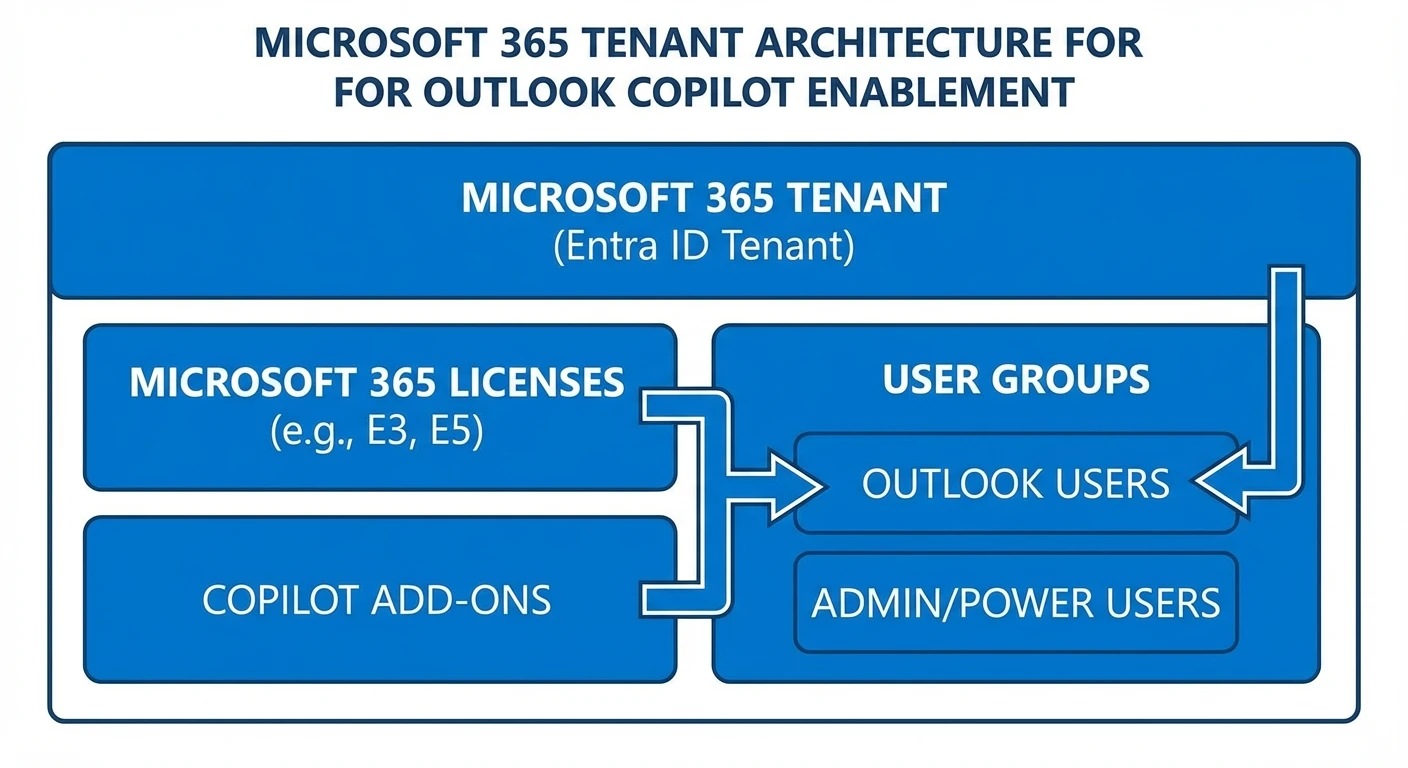
Before anyone in your organisation can use Copilot in Outlook, the tenant has to meet some clear prerequisites. Copilot isn’t something you can simply bolt onto the free Outlook product or legacy standalone Outlook licences—it’s only available as part of eligible Microsoft 365 subscriptions with a Copilot add-on. Users need an eligible Microsoft 365 plan plus a Copilot add-on. For individuals in regions where Copilot Pro is not yet bundled with Microsoft 365, that typically means adding Copilot Pro on top of Microsoft 365 Personal or Family, while in markets like Australia and select Asia-Pacific countries, Copilot Pro features are now included directly with Microsoft 365 Personal and Family at no extra cost. For organisations, it means Copilot for Microsoft 365 on top of Business Standard, Business Premium, or enterprise plans like E3, E5, Office 365 E3, or Office 365 E5—licensing requirements that align with Microsoft’s own guidance, with Outlook-specific differences driven mainly by whether users have a paid Copilot license at all rather than by the exact underlying plan..
In practice, this requires careful licence mapping in Entra ID (formerly Azure AD). Many AU organisations still run mixed estates: some users on Business Standard, others on legacy E1, and project teams on E3/E5. Only subsets with the qualifying base licence plus the Copilot add-on will see the Copilot experience inside Outlook. As an admin, you need a clear allocation strategy—who genuinely needs Copilot for email, and where you want to test first. Otherwise, you will be flooded with “Why don’t I see the Copilot icon?” tickets. A structured approach to model and licence selection—similar to using comparisons like GPT‑5.2 vs Gemini 3 Pro feature guides—helps you avoid that chaos.
Client version is the next gating factor. Copilot’s email features require supported, up-to-date Outlook experiences: Outlook on the web, classic Outlook and the new Outlook for Windows and Mac (with broader and newer capabilities in the new Outlook), plus supported mobile access via the Microsoft 365 Copilot app. If users complain that features like “Prioritize my Inbox” are missing, common culprits are outdated clients, licensing gaps, or tenant-level feature toggles that have not been updated. For AU organisations that stagger updates—especially in regulated sectors—you may want a dedicated Copilot pilot ring with faster update cadences so you can fully test behaviour before broad deployment, much like you would when trialling different OpenAI model configurations in a controlled environment.
https://learn.microsoft.com/en-us/microsoft-365-copilot/microsoft-365-copilot-overview
2. Step-by-Step: Enabling and Configuring Copilot for Email
Once your licensing and client prerequisites are in place, enabling Copilot for Outlook is straightforward, but the order matters. For AU tenants, there are no region-specific switches for individual email features; instead, your focus is on consistent Microsoft 365 configuration and strong identity hygiene rather than geographic controls.—a philosophy very similar to how secure, compliant AI deployments are handled more broadly.
Start in the Microsoft 365 admin centre by assigning the Copilot licence to the target users or pilot group. Confirm that their primary sign-in account is a work account governed by Entra ID and not a personal Microsoft account; mixing these often results in users launching the wrong Outlook profile and not seeing Copilot at all. Then, ensure that your update channels (Current, Monthly Enterprise, Semi-Annual) deliver the builds that support Copilot. If you are running a conservative channel, consider moving your Copilot pilot users to a more frequent update track. This sort of ring-based rollout mirrors best-practice automation projects where custom AI workflows are trialled with small, well-understood cohorts first.
From the user side, the workflow is simple. In Outlook on the web, users open their mailbox, click the Copilot icon in the Home ribbon or command bar, and launch the side panel. This is where they can ask Copilot to summarise, draft, and manage messages. For drafting, they create a new message, select “Draft with Copilot”, describe what they need, and Copilot generates an initial version they can refine. On mobile (iOS or Android), they tap New Mail, then the Copilot icon to draft or coach an email; coaching requires an existing email of at least 100 characters so that the model has enough context, a pattern that aligns with Microsoft’s own documentation on Copilot’s coaching and drafting flows..
One configuration step that still flies under the radar for many users is turning on inbox-prioritisation features—such as Outlook’s “Focused Inbox” today and newer options like “Prioritize my inbox” as they roll out—in the app’s settings when they become available. The feature surface is richest in Outlook on the web, so many AU IT teams choose to make that the primary reference experience in enablement guides. You can also point power users to Microsoft 365 Copilot Chat in the browser, where they can work almost full-screen with their mailbox and issue broader prompts across email and documents when needed, in much the same way that power users might work with a dedicated professional AI assistant alongside their usual productivity tools.
3. Advanced Scenarios, Limits, and Safe Use Across AU Teams

Most Australian organisations do not live in a world of neat, single-user inboxes. Service desks, HR, finance, site offices—many depend on shared or delegated mailboxes. Copilot’s behaviour in these scenarios needs careful thought. In a shared mailbox, multiple people may use Copilot against the same message set. If one user asks Copilot to bulk archive “old marketing emails”, that affects every other person relying on that mailbox. There is no separate AI “view” per delegate, which means governance here looks a lot like governing cross-team shared AI workspaces or assistants in other tools.
A pragmatic approach is to restrict high-impact Copilot actions on shared mailboxes during your early rollout. Allow summarisation and drafting, but set expectations that bulk delete or archive operations require a human double-check by the mailbox owner or a designated lead. For delegated access to executive inboxes, you may even decide to disable Copilot for delegates initially and only allow the mailbox owner to run Copilot-driven clean-ups after training. That reduces the chance of well-meaning assistants applying prompts that do not match the executive’s risk tolerance.
From a technical perspective, one of the most important things for admins to understand is what Copilot does not do. It is a collaborative email assistant that helps users manage their inboxes—organizing messages, suggesting replies, and automating repetitive tasks—while keeping the user in control, rather than a fully autonomous agent that independently takes over their inbox. It relies on explicit prompts and rules you already have in Outlook and Microsoft 365. There is no dedicated training mode where you can directly “teach” it the nuanced, long-term priorities of your CFO versus your site managers in the way a human assistant would; instead, it depends on configurable, role-aligned settings, templates, and KPIs rather than evidence of deep, persistent learning of individual user preferences across months.—a limitation highlighted in several independent evaluations of Copilot and competing assistants.
This limitation shows up most clearly in misclassification risk. Copilot can misinterpret which emails are high or low importance when language is vague, when clients use unusual jargon, or when a multi-thread conversation changes topics mid-stream. It may lean too heavily on familiar senders and underweight new but critical partners. In mixed-language threads—common when AU teams work with Asia-Pacific suppliers—Copilot can miss nuances or fail to capture intent in summarisation and triage. Mobile clients still lag behind web and desktop for Copilot, with some capabilities only available in Outlook on the web or the latest desktop builds; a regional manager in Brisbane who relies solely on their phone will typically see a narrower Copilot experience than a head‑office user working in a browser, a nuance echoed in independent Outlook Copilot reviews and user feedback..
As an admin, you can mitigate these risks through both configuration and training. Encourage users to be explicit in prompts: name key clients, domains, or job roles when asking Copilot to find important messages. For example, “Highlight anything from @keyclient.com or from our legal counsel with ‘contract’ or ‘settlement’ in the subject.” In high-risk roles like legal, healthcare, or financial approvals, emphasise that Copilot is a second layer—not the first and final gate. Staff should spot-check any Copilot suggestions about what can be safely ignored or deleted, especially in the first few months after rollout. For language support, Copilot appears optimised for English, and while it can interact with other languages, nuanced triage and summarisation are less reliable when messages mix English with languages such as Japanese, Mandarin, or Bahasa, so in Australian organisations with strong Asia-Pacific ties, you may want to give non-English teams conservative guidance: use Copilot primarily for drafting in English, and treat summarisation of mixed-language threads as a rough aid, not a source of record.
Another challenge is the lack of robust, out‑of‑the‑box quantitative accuracy metrics for specific AI tasks. While Copilot offers dashboards and analytics around adoption and impact, it does not currently expose neat, system‑generated accuracy scores like “priority detection is 93% accurate” or “summaries are correct 97% of the time.” Internal pilots therefore have to be more qualitative. Design short, time-boxed pilots with hand-picked users across different roles and locations—Sydney HQ, Perth operations, regional sales. Ask them to log examples of great performance and concerning misclassifications. Use surveys and structured feedback sessions rather than waiting for incident tickets, and document the learnings as rigorously as you would when evaluating different AI model cost/performance trade-offs for other workloads.
https://learn.microsoft.com/en-us/microsoft-365-copilot/microsoft-365-copilot-language-support | https://learn.microsoft.com/en-us/microsoft-365-copilot/m365-copilot-faq
Practical Implementation Checklist for AU IT Teams
A concrete, staged rollout helps. Start with the basics: confirm your Microsoft 365 plans and assign Copilot licences only to a defined pilot cohort. Ensure those users are on supported Outlook clients with appropriate update channels. Double-check that their Entra ID identities are clean and that they are not using personal accounts for work email on the same device—an approach that mirrors the careful identity and tenant reviews that precede any serious AI implementation project.
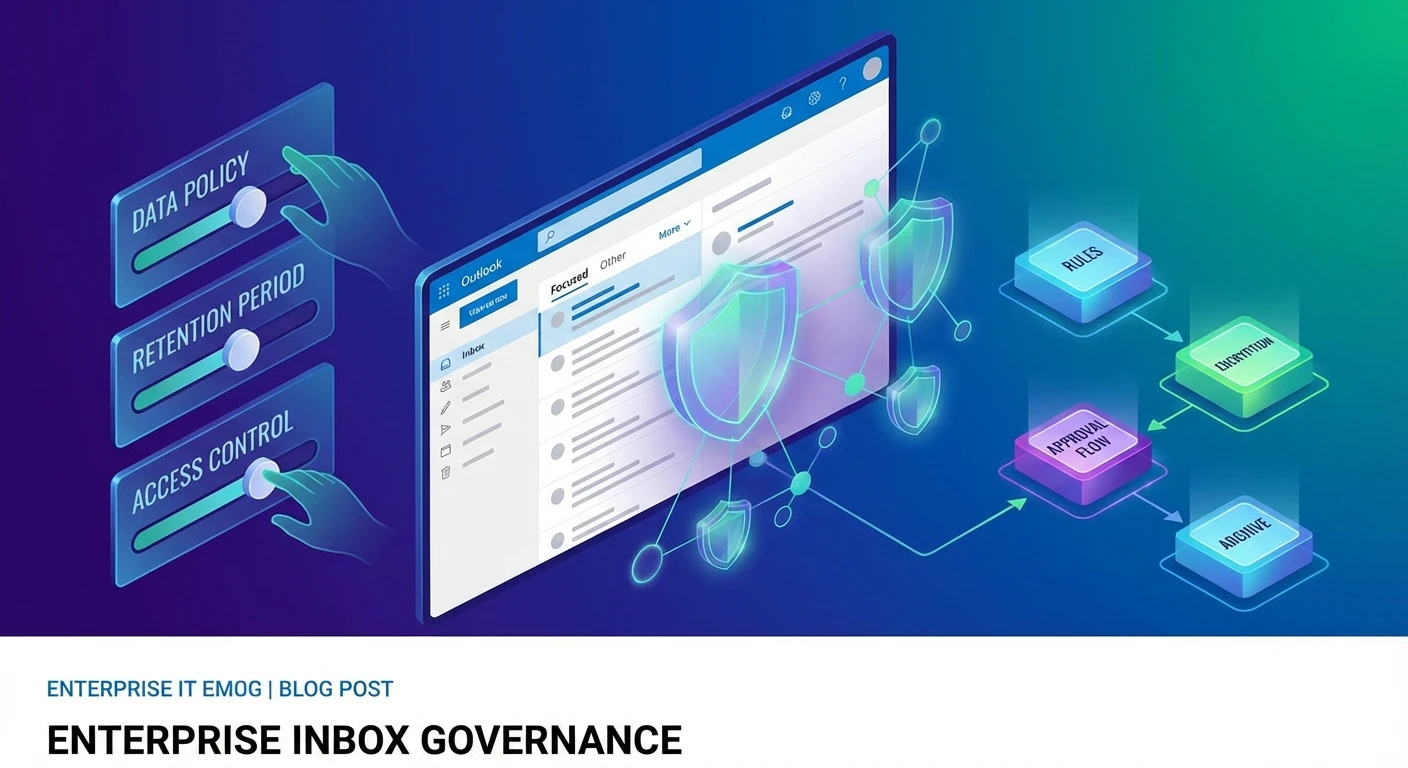
Next, tighten your foundation. Review mailbox rules and Microsoft 365 retention policies so they reflect how you actually want email to flow and be stored. Where needed, implement new rules for critical senders, security alerts, and line-of-business systems so Copilot operates on a reasonably tidy inbox, not complete chaos. Classic Outlook rules handle deterministic logic very well: moving messages from specific senders to folders, flagging certain domains, or copying messages to shared mailboxes, while retention labels and mailbox policies drive systematic deletion or archiving. Those lifecycles should remain driven by compliance requirements, not Copilot prompts, but once those policies are in place, Copilot can help users tidy up within that framework. Think of rules and retention as the rails; Copilot is the smart assistant running on top, responding to prompts instead of quietly changing your records behind the scenes.
To avoid over-dependence, document explicit guardrails in your internal Copilot guidance: what users can safely ask Copilot to do (draft responses, propose deletions, suggest folders) and what remains off-limits (modifying legal holds, bypassing retention, handling high-risk approvals). Reinforce that users remain accountable for what gets deleted or sent. For ongoing governance, many teams track their own Copilot-related standards, examples of misclassification, and FAQs in internal wikis—much like maintaining an internal knowledge and content map for other AI-supported processes.
During pilots, focus monitoring on three areas: misclassifications of important email, risky deletions or archiving, and behaviour in shared or delegated mailboxes. Gather examples rather than just impressions. Adjust training, rules, or even licence allocation if you find certain roles need stricter controls. Finally, build a formal “go/no-go” checklist for broader rollout across AU sites, including sign-off from information security and key business owners, so Copilot becomes a managed capability, not an ad-hoc experiment that spreads by word of mouth.
https://learn.microsoft.com/en-us/microsoft-365/admin/misc/microsoft-365-copilot-setup | https://learn.microsoft.com/en-us/microsoft-365/compliance/retention
Conclusion: Turn Copilot into a Managed Email Capability
Copilot for email in Outlook can be a powerful asset, but only if AU IT teams treat it as a managed capability, not a mysterious feature that simply “appears” in the ribbon. By nailing the tenant and licensing prerequisites, keeping clients current, and treating rules and retention as the safety net, you create a stable base. Layer on clear guardrails around misclassification, shared mailboxes, delegated access, and multilingual or mobile-heavy use, and you can make Copilot both useful and safe—just as you would with any other secure Australian AI assistant embedded in business workflows.
Use this as an internal playbook. Start small, monitor closely, and then expand with confidence across your Australian workforce, ideally under the guidance of clearly defined terms, controls, and governance settings that keep the whole initiative on a firm footing.
Frequently Asked Questions
What are the licensing requirements to use Copilot for email in Outlook in Australia?
For organisations, users need an eligible Microsoft 365 plan (such as Business Standard, Business Premium or an enterprise SKU) plus the Copilot for Microsoft 365 add-on. For individuals, Copilot Pro can be added to Microsoft 365 Personal or Family, although in Australia many Copilot Pro features are now included directly in those plans at no extra cost, subject to Microsoft’s current regional availability and terms.
How do I technically enable Copilot for email in Outlook for my Microsoft 365 tenant?
Enable Copilot at the tenant level by assigning the Copilot for Microsoft 365 licences to selected users in the Microsoft 365 admin center and ensuring they have modern Outlook clients (Web, New Outlook or current Office apps). You may also need to confirm data residency, compliance settings, and that the relevant cloud services (Exchange Online, OneDrive, SharePoint) are active so Copilot can access organisational data securely.
How can Australian IT admins control what data Copilot in Outlook can access?
Copilot honours the same permissions and data governance already configured in Microsoft 365, including Exchange Online permissions, sensitivity labels, and retention policies. To control access, tighten mailbox permissions, review shared mailbox access, apply information protection labels, and use tools like Purview and conditional access so Copilot never sees content that a user shouldn’t be able to see anyway.
What is the best way to roll out Copilot for email in Outlook across an organisation?
Start with a controlled pilot group, such as IT and a few business champions, to refine policies, templates and training before broader rollout. Use a staged deployment plan: assign licences to the pilot, gather usage and risk feedback, adjust rules and governance, then progressively extend to more users with targeted training and clear usage guidelines, similar to how LYFE AI approaches governed AI automation projects.
How should I configure Outlook rules and retention policies when using Copilot for email?
Keep your core transport and inbox rules focused on legal, security, and compliance needs rather than trying to ‘optimise for Copilot’. Ensure retention labels and policies are applied consistently so Copilot is drawing from the right historical email set, and avoid overly aggressive auto-deletion or archiving that would remove useful context Copilot relies on for summarisation and drafting.
How does Copilot handle shared mailboxes and team inboxes in Outlook?
Copilot respects the underlying permissions on shared mailboxes, so it only surfaces and drafts content for users who already have access. For team inboxes like support@ or info@, you should review access lists, consider using standardised response templates, and define clear guidelines so staff know when Copilot-generated responses must be reviewed, edited or escalated before sending.
How do we manage misclassification or inaccurate Copilot email responses?
Train users that Copilot is an assistant, not an auto-pilot: every email draft must be reviewed and edited for accuracy, tone and privacy before sending. As an IT team, monitor feedback channels, encourage users to report common failure patterns, and refine prompts, templates, and policies—or engage a specialist like LYFE AI to help tune workflows and governance around known edge cases.
Does Copilot in Outlook support multilingual email for Australian teams working across APAC?
Yes, Copilot can help draft and translate emails in multiple languages, making it useful for Australian organisations working with regional offices across Asia-Pacific. You should still have bilingual staff validate important external communications, and consider providing standard bilingual templates for legal, HR, and compliance-sensitive messages that Copilot can adapt rather than invent from scratch.
How does Copilot for email in Outlook affect compliance and data residency for Australian organisations?
Copilot builds on the existing Microsoft 365 compliance framework, so your data residency, retention and auditing settings continue to apply. Australian organisations should verify where their Microsoft 365 data is stored, ensure Purview and audit logging are configured, and document in their privacy and AI use policies how Copilot accesses and processes corporate data.
How can LYFE AI help my organisation get Copilot for Outlook set up and governed properly?
LYFE AI offers professional AI automation services that include assessing your Microsoft 365 environment, mapping licensing and tenant prerequisites, and designing a safe, staged Copilot rollout. They can help you configure technical guardrails, integrate Copilot into existing workflows, train staff, and develop governance frameworks tailored to Australian regulatory and organisational requirements.